
Start here to ensure Centerbase has proper permissions to send emails and sync calendars with Outlook through Office 365. By following these steps, you'll resolve issues where emails fail to deliver or calendar events don't sync between Centerbase and Outlook.
Configuring Permissions
Step 1: Log in to Entra (entra.microsoft.com).
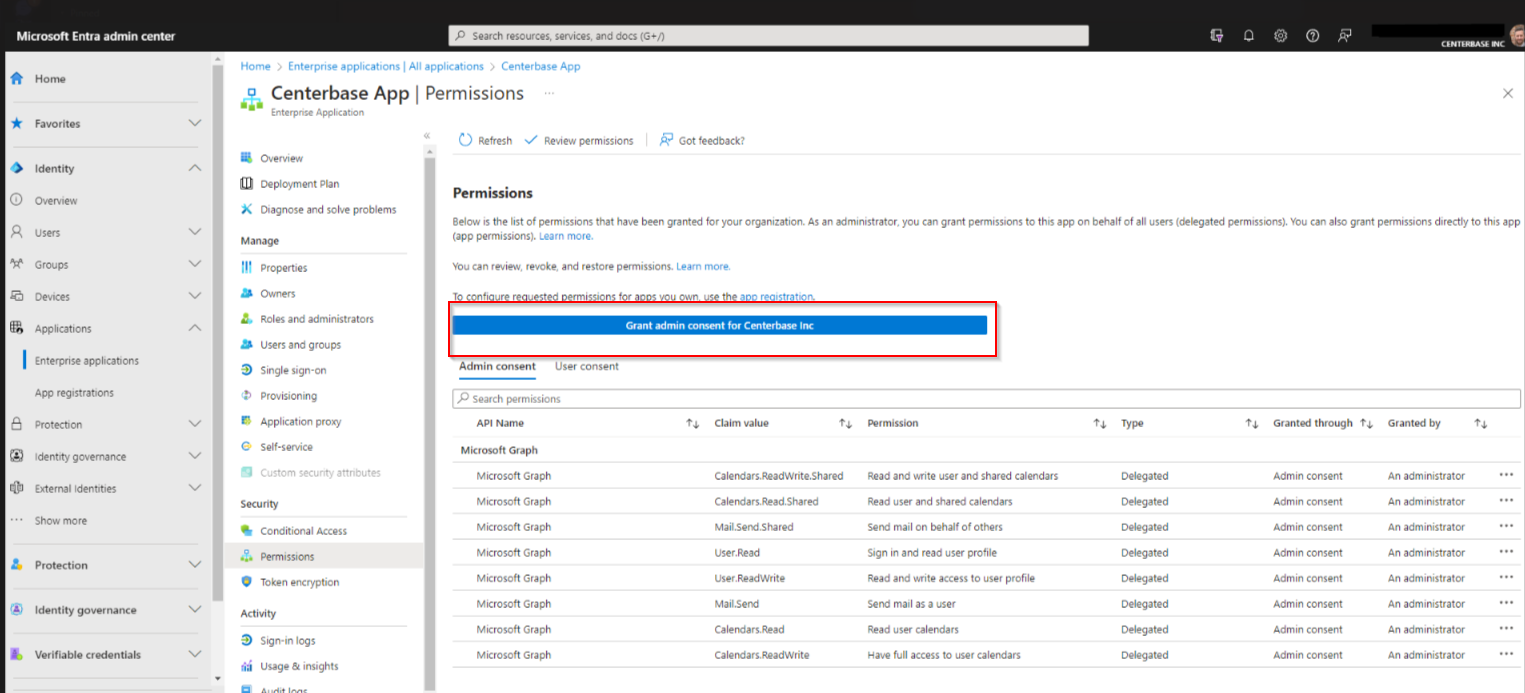
Step 2: Go to Applications > Enterprise Applications. Search for and select Centerbase.
Step 3: Open Permissions (found under Security).
Step 4: Select the blue Grant admin consent button.
Important Notes
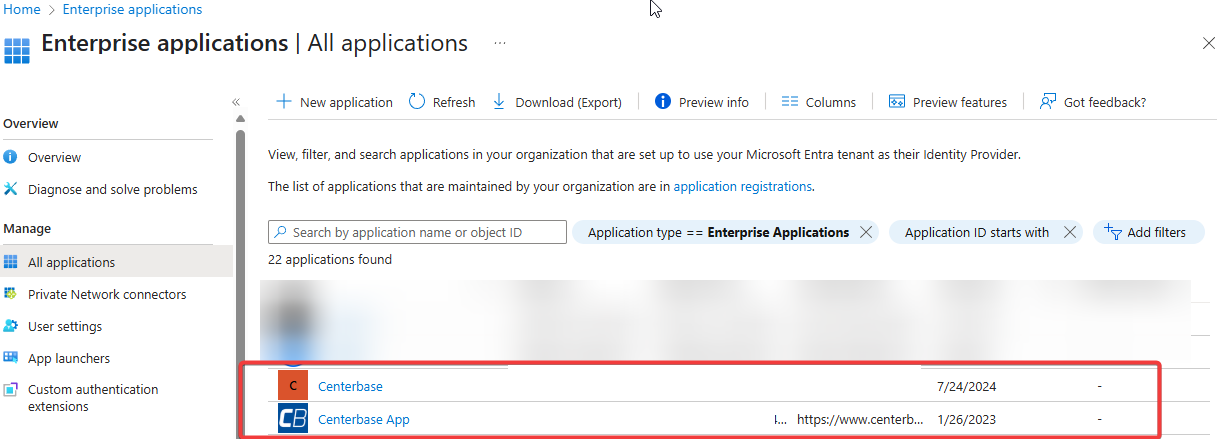
Often, you'll see more than one Centerbase app—usually one for SSO and another for Email/Calendar. Your firm may have additional instances. Make sure your IT team grants Admin Permission to the correct "Centerbase App." If unsure, it's safe to grant Admin Consent to each app listed.
Comments
0 comments
Please sign in to leave a comment.