
When payments need to be made on behalf of a client to a vendor, a direct disbursement from trust can be issued. This eliminates the need of transferring funds from your trust account to your operating account in order to pay the vendor.
A disbursement from trust can easily be made in Centerbase by creating a check or creating a disbursement from the trust ledger.
Watch the video and follow the step-by-step guide to learn how to disburse funds from a matter trust account.
Creating a Disbursement with a Check:
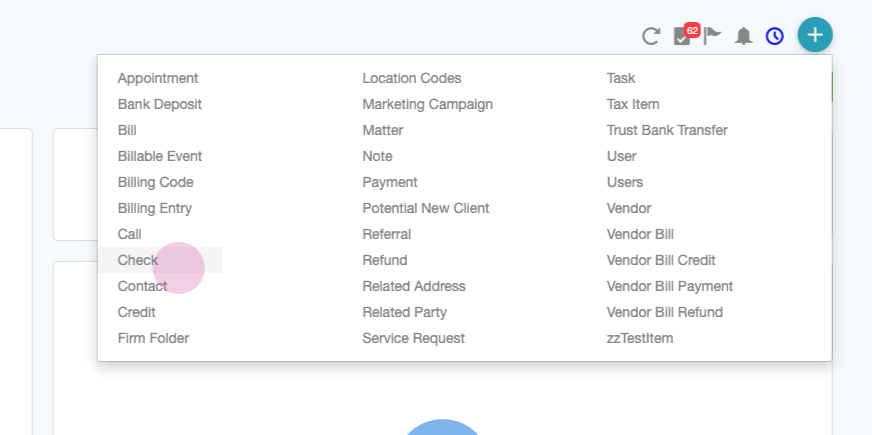
Step 1: Click on the New Menu and select 'Check'.
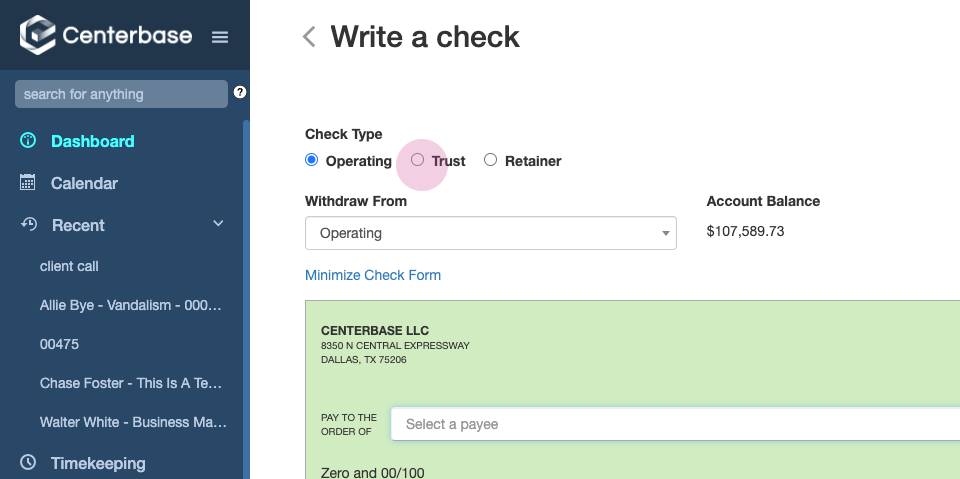
Step 3: Select Trust or Retainer as the check type.
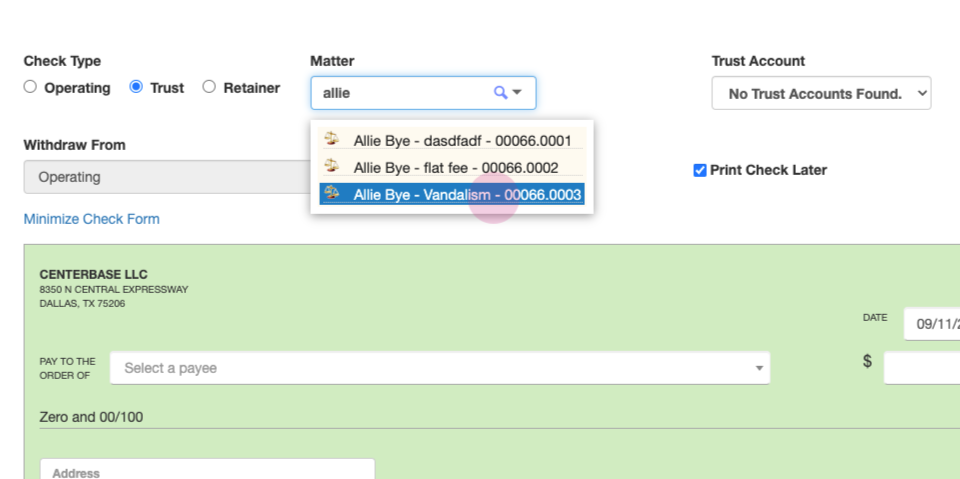
Step 4: Search for the appropriate matter.
Step 6: Select the correct matter trust or retainer account.
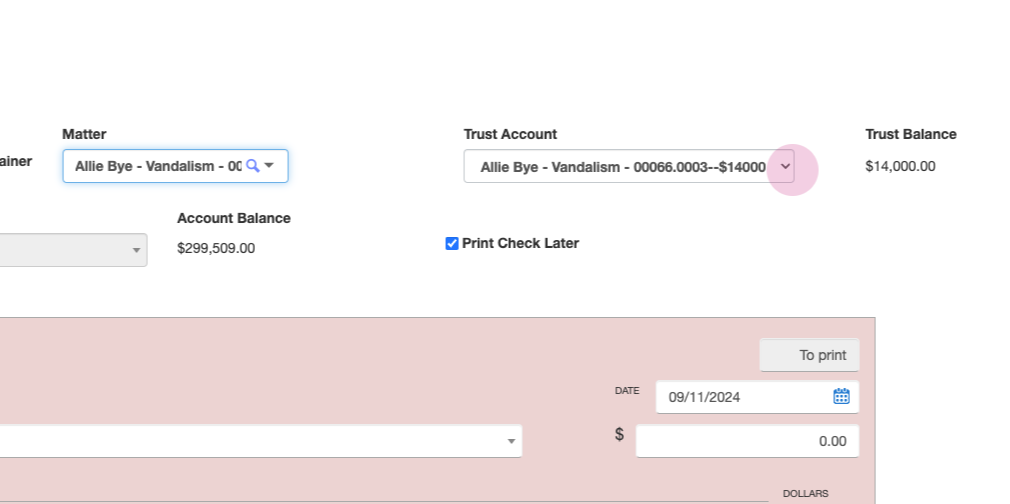
Step 7: Review the Trust Balance.
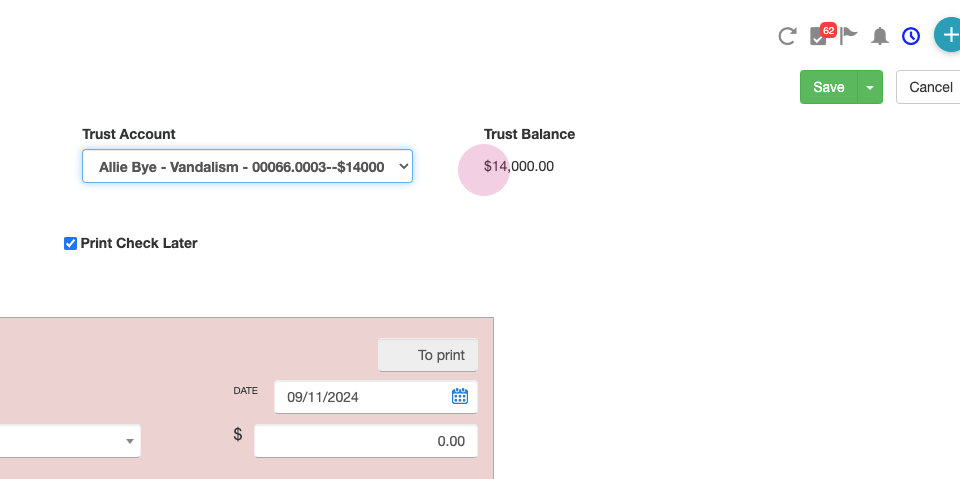
Note: Centerbase will not allow you to overdraw a matter trust balance or the firm trust account balance.
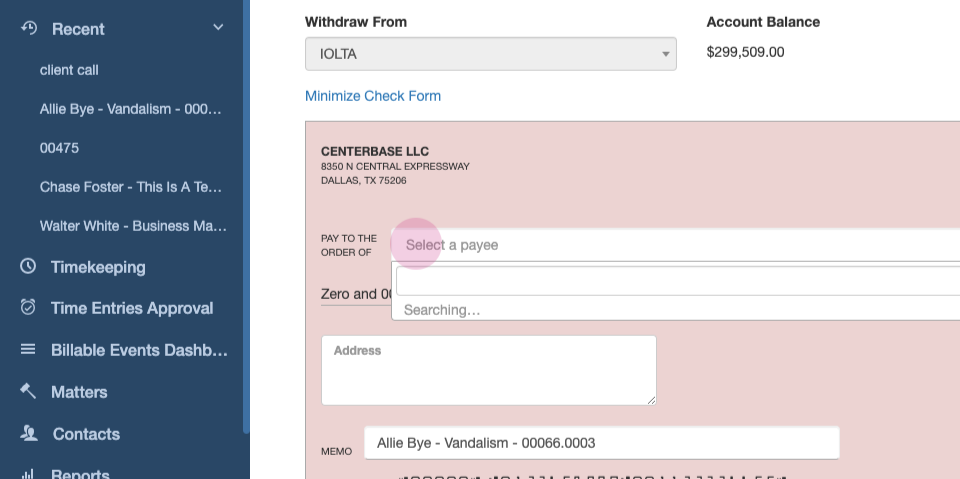
Step 8: Search through clients and vendors in the 'Pay to the Order Of' field.
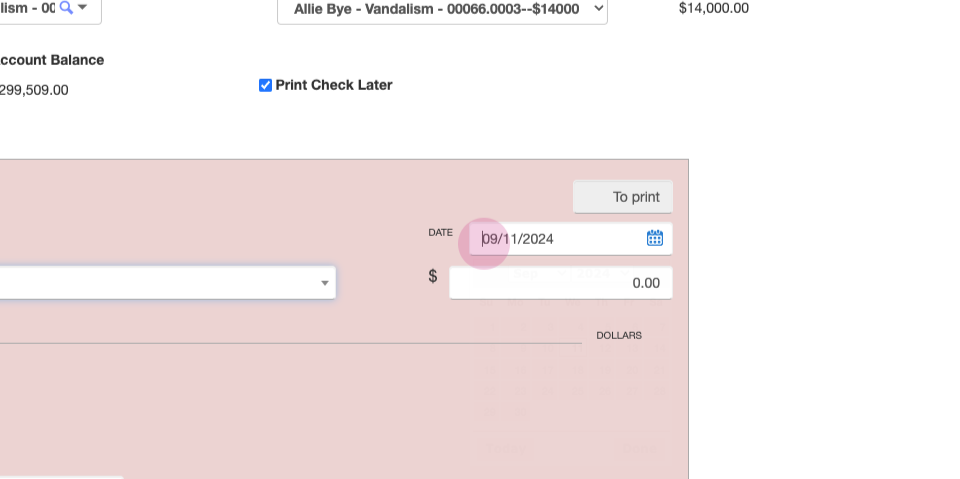
Step 9: Enter the disbursement date.
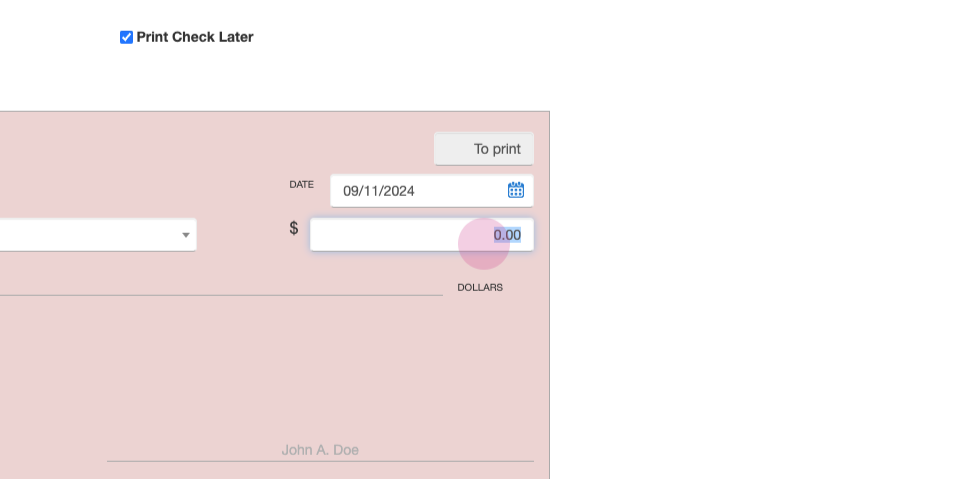
Step 10: Enter the disbursement amount.
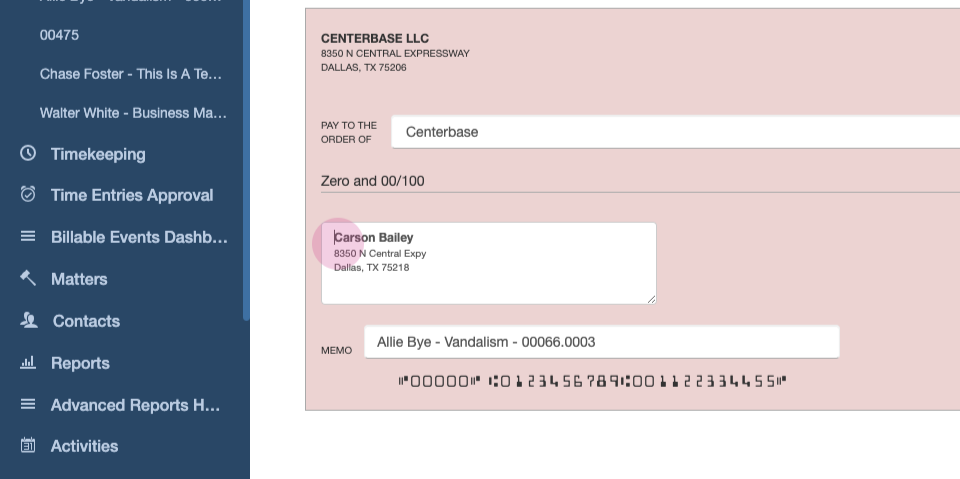
Step 11: Review or edit the remit to address.
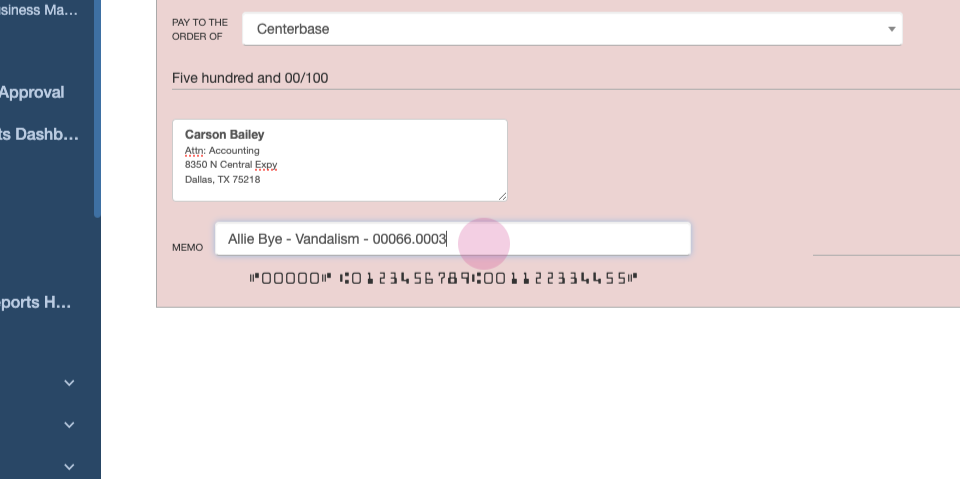
Step 13: Review or edit the check memo line.
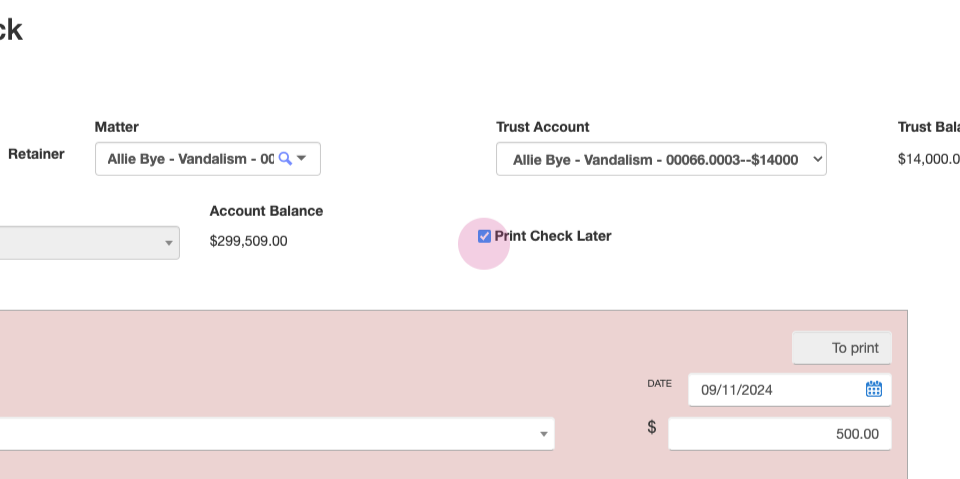
Step 15: Choose to either print check later, or print check now.
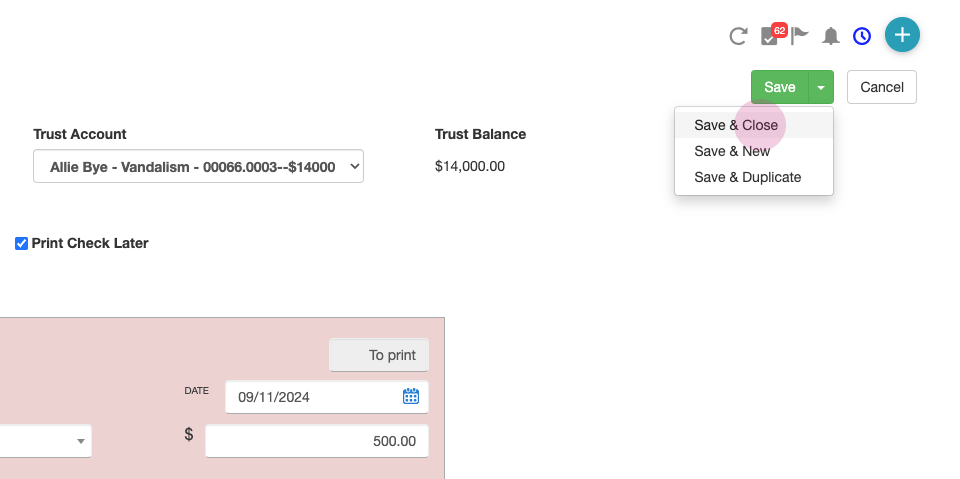
Step 18: When finished, press save, or choose on of the other save options.
Creating a Electronic Disbursement
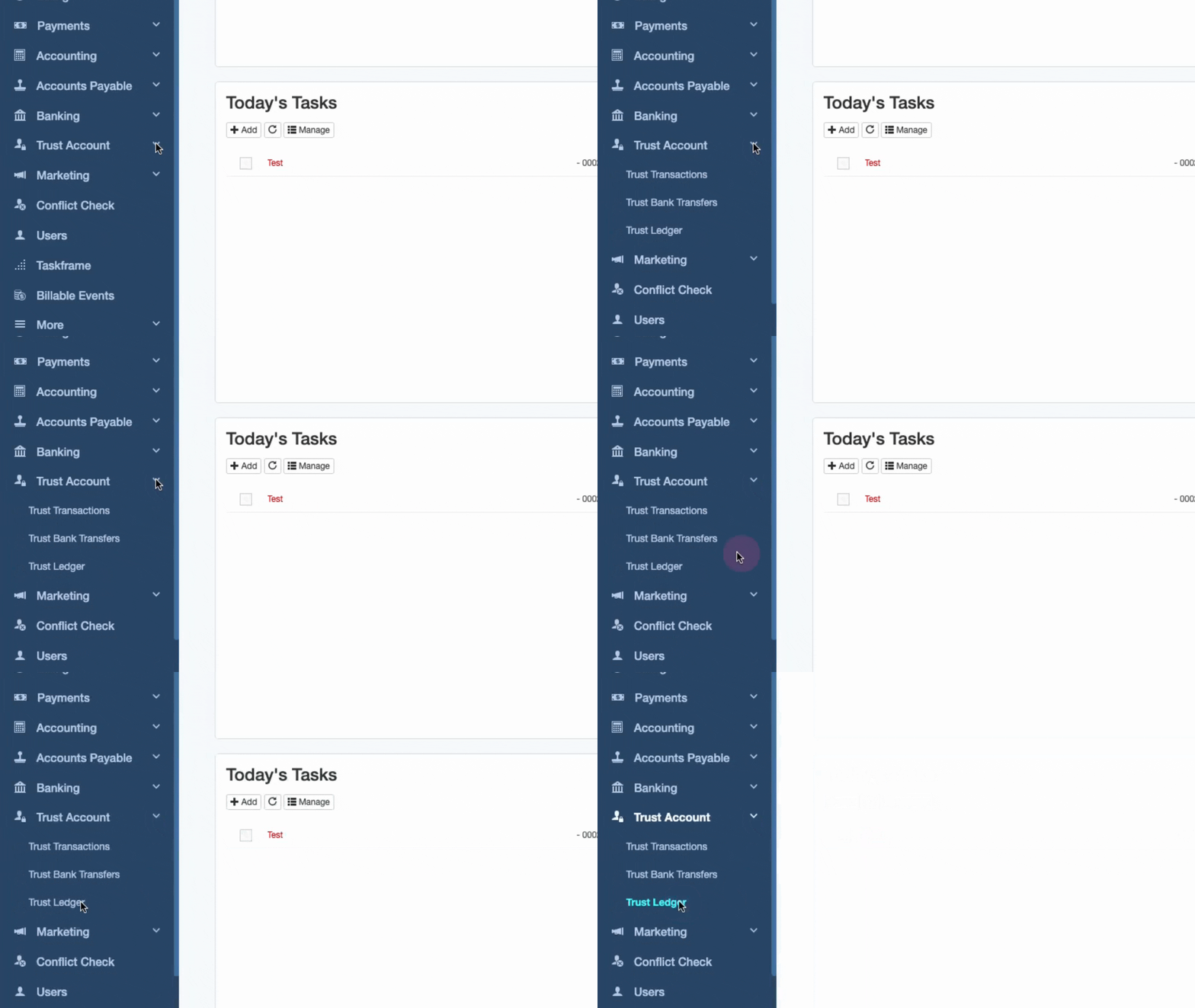
Step 1: Click the Trust Account tab on the Navigation Bar. Then, select Trust Ledger.
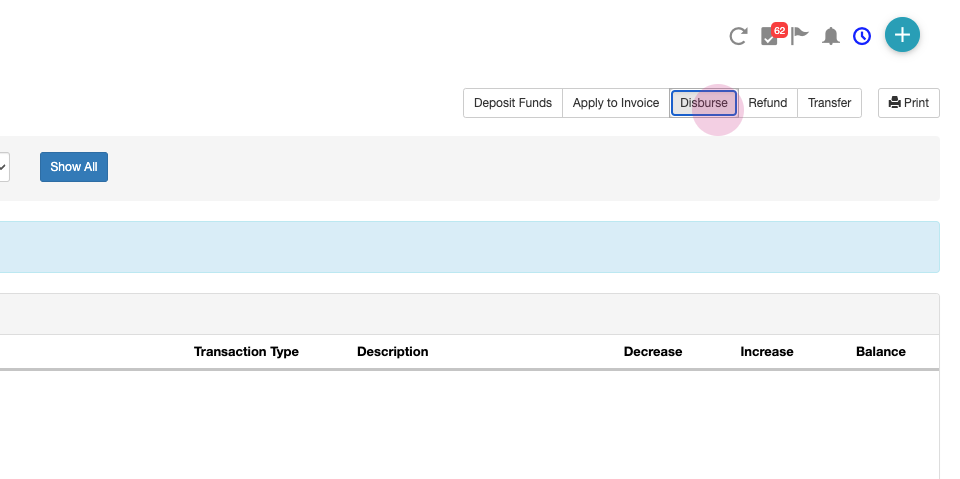
Step 2: Select the Disburse button.
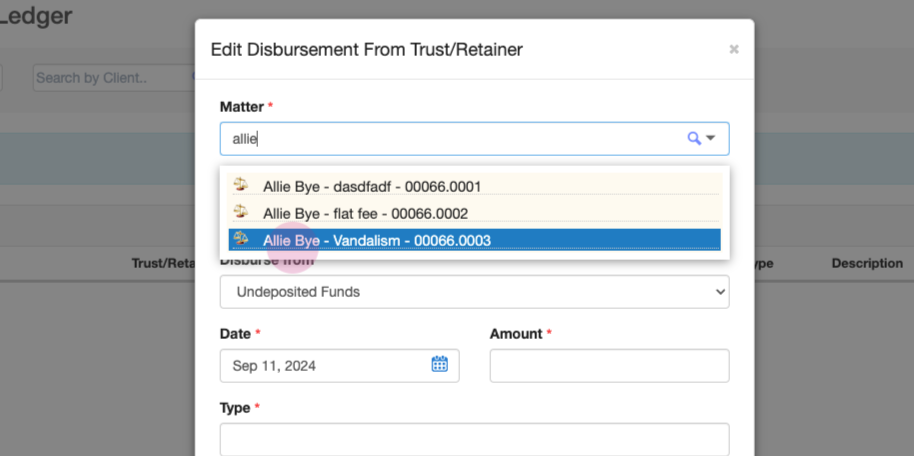
Step 3: Search and select the matter name.
Step 4: Choose the appropriate trust account.
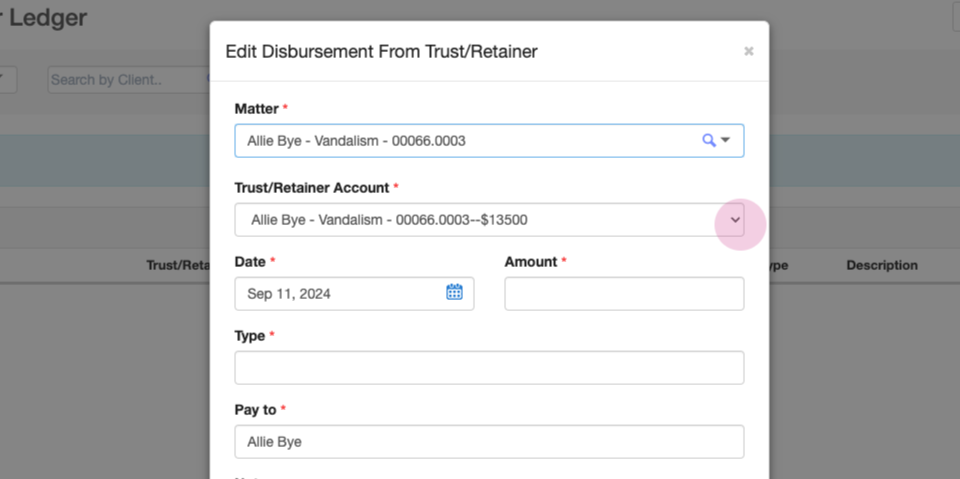
Step 5: Enter the disbursement date.
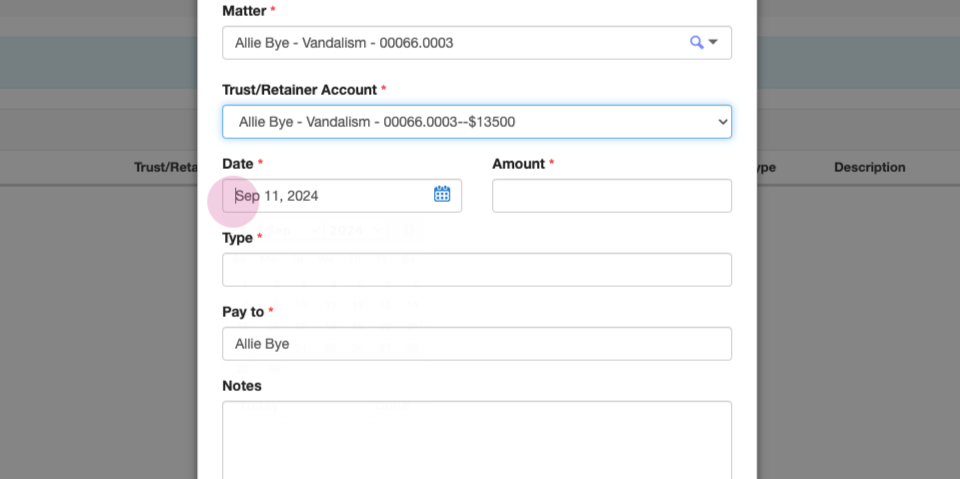
Step 6: Enter the disbursement amount.
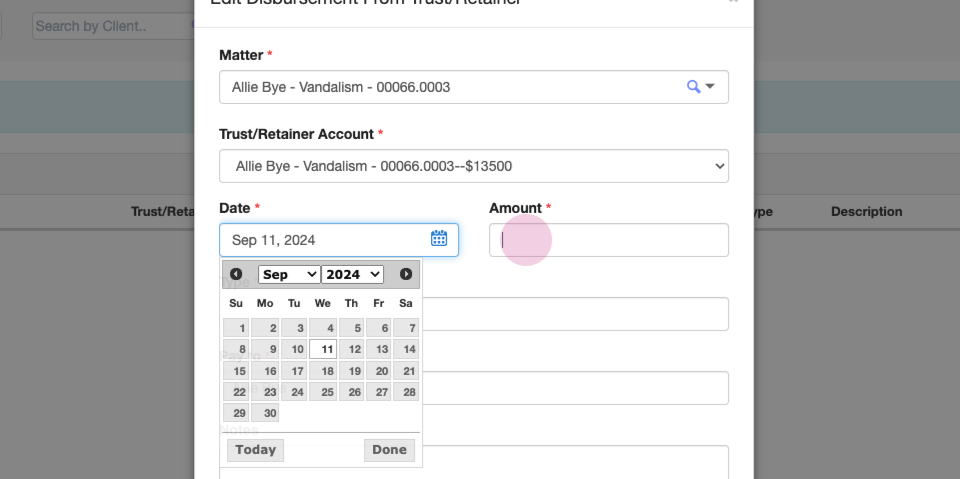
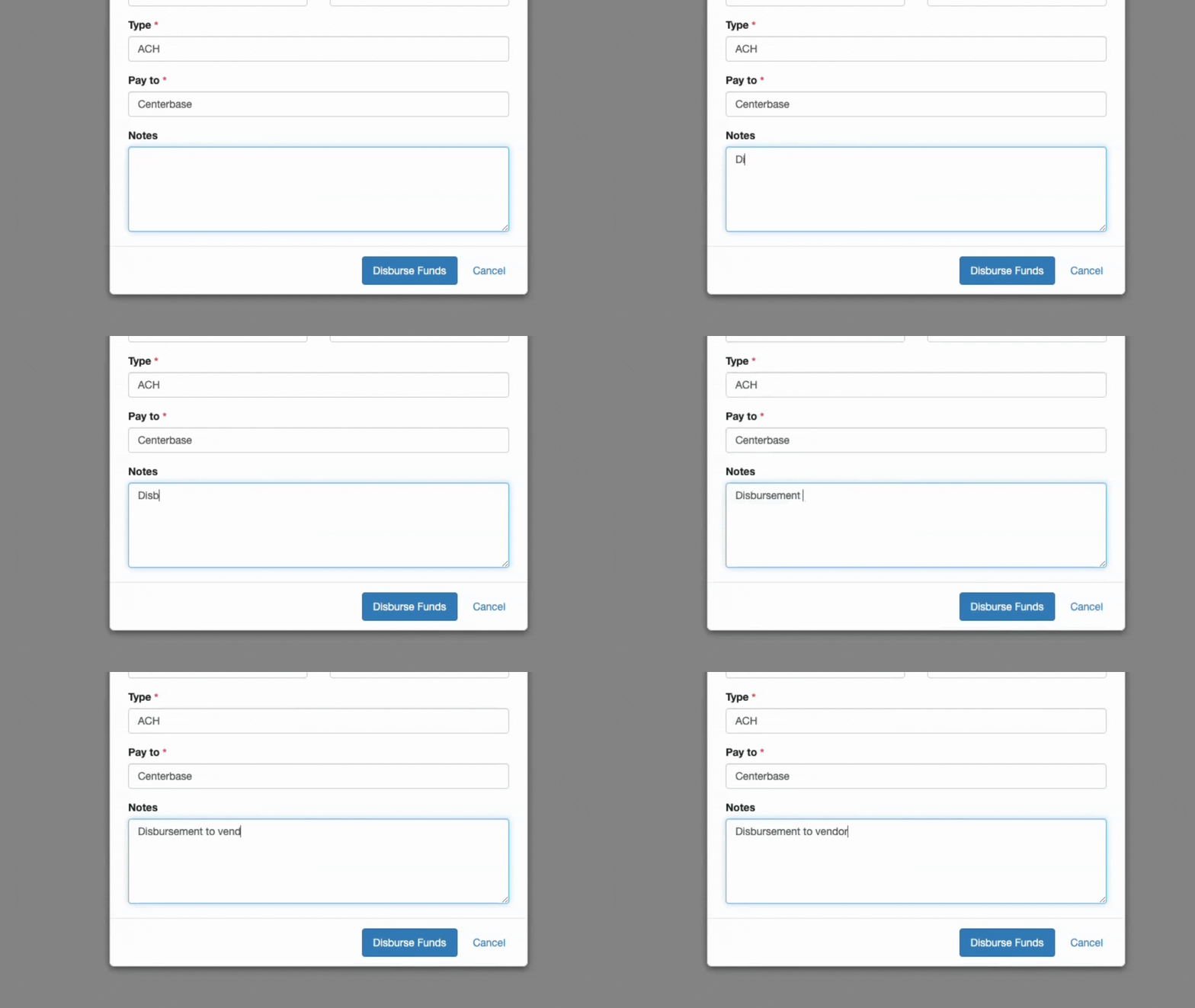
Step 7: Enter the disbursement type.
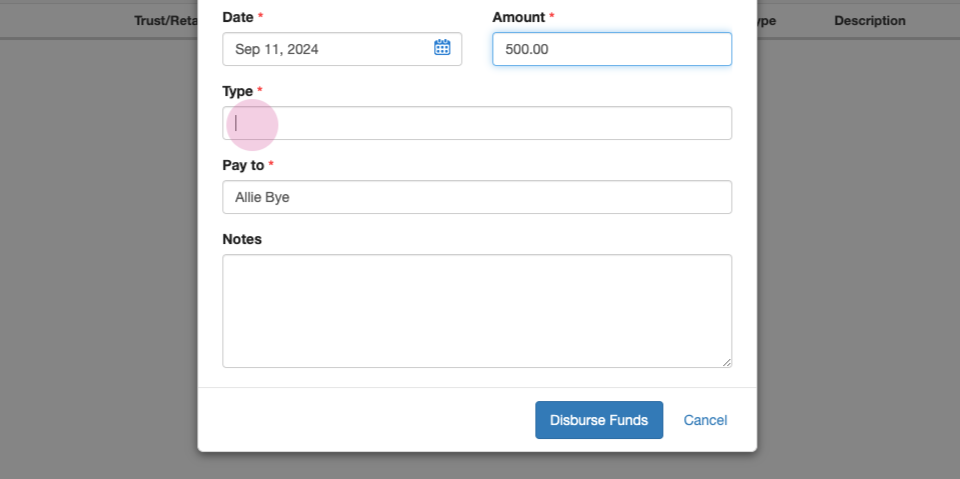
Step 8: Enter the pay to information.
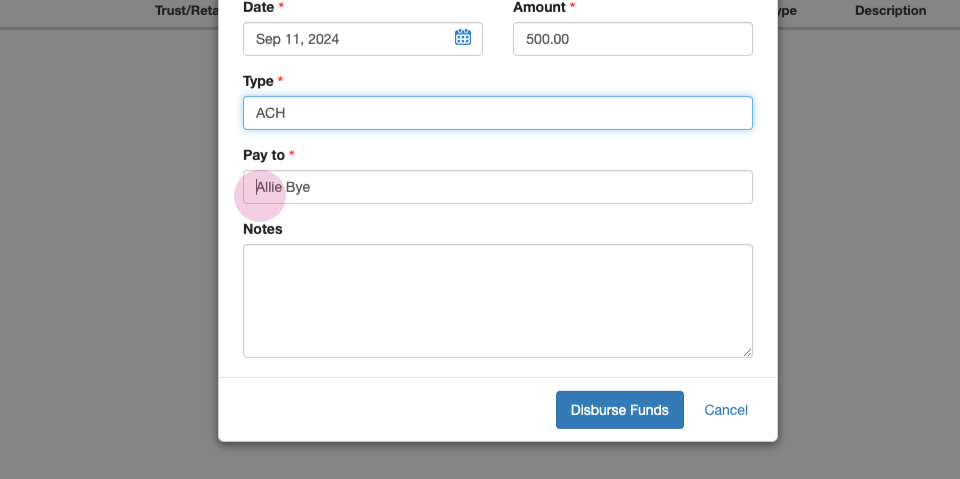
Step 9: Add any client facing notes. The notes field is optional.
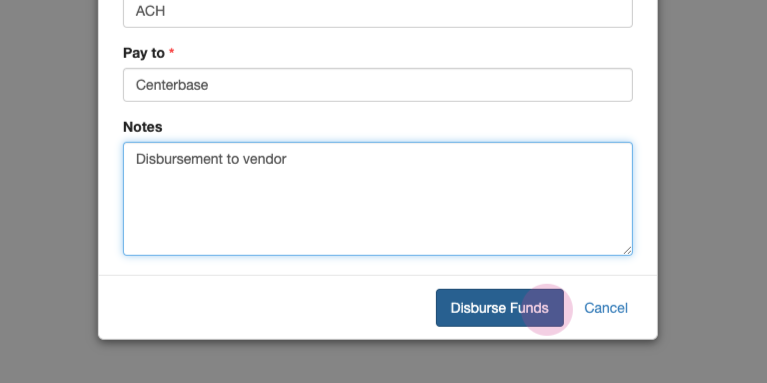
Step 10: When finished, click the blue Disburse Funds button.
Comments
0 comments
Article is closed for comments.