
How to Refund a Client Without an Overpayment
Need to refund part of a paid invoice—even if there wasn’t an overpayment? Here’s a step-by-step guide for processing client refunds in two ways: with a negative billing entry or by creating a credit and overpayment. Both methods help you issue refunds accurately and keep your records clean.
Method 1: Creating a Negative Billing Entry
Use this method when you want to refund a portion of fees after a client has paid in full, without creating an overpayment.
Step 1: Go to Matter Actions and select Add Time and Expense.
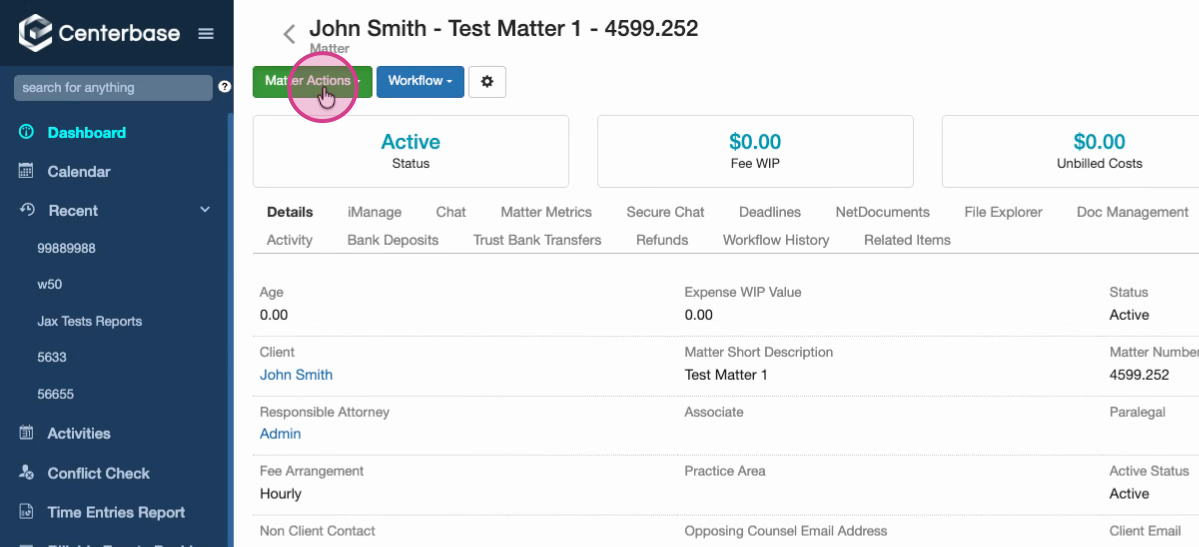
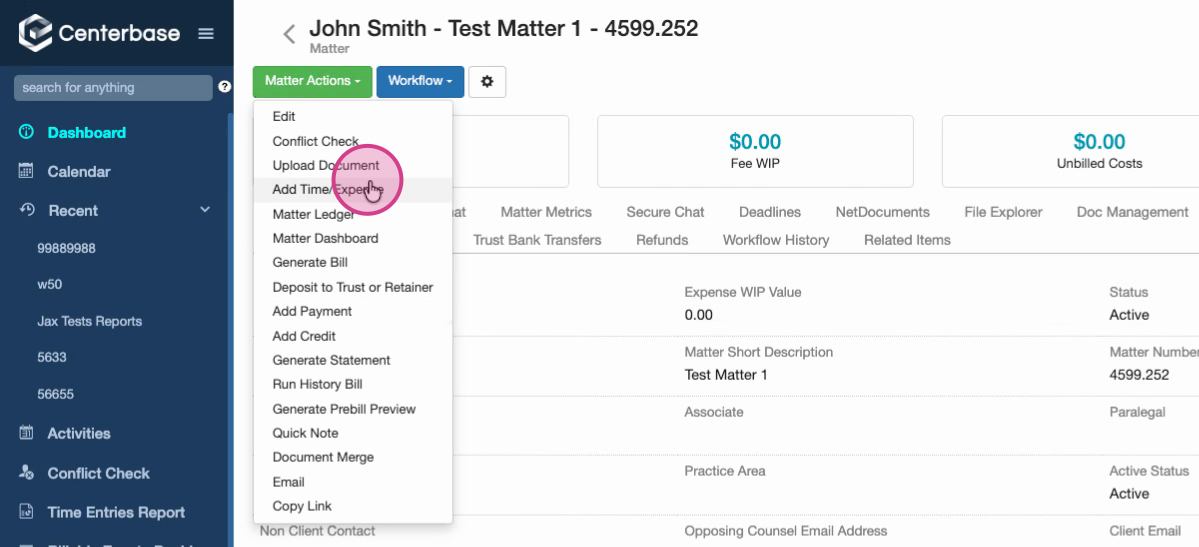
Step 2: Enter a negative amount as your billing entry. This represents the amount to refund.
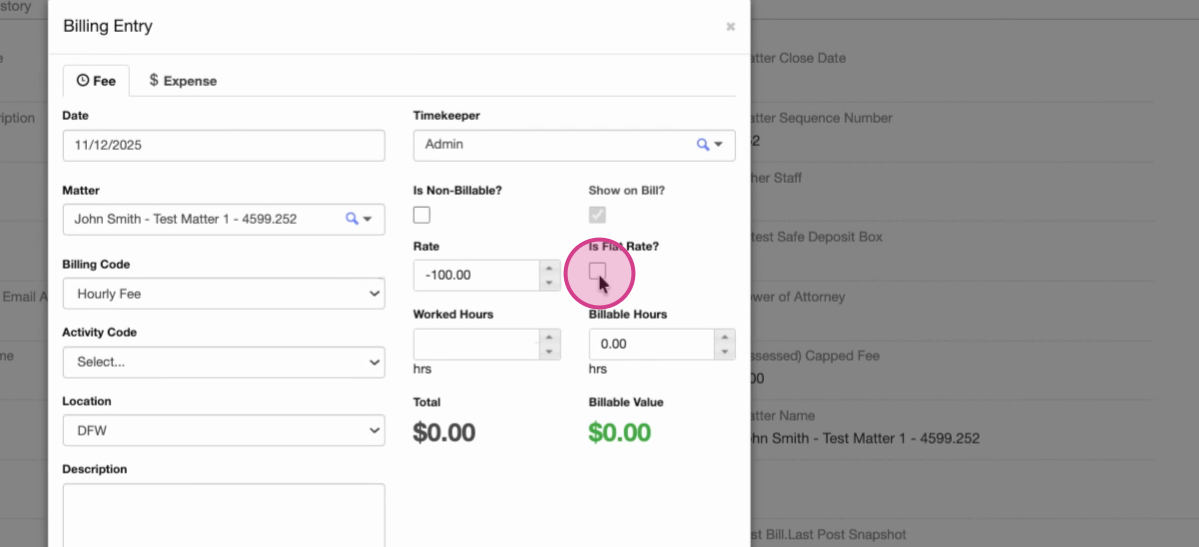
Note: The negative entry will affect the selected timekeeper. If you need to refund across multiple timekeepers, create separate negative entries for each one.
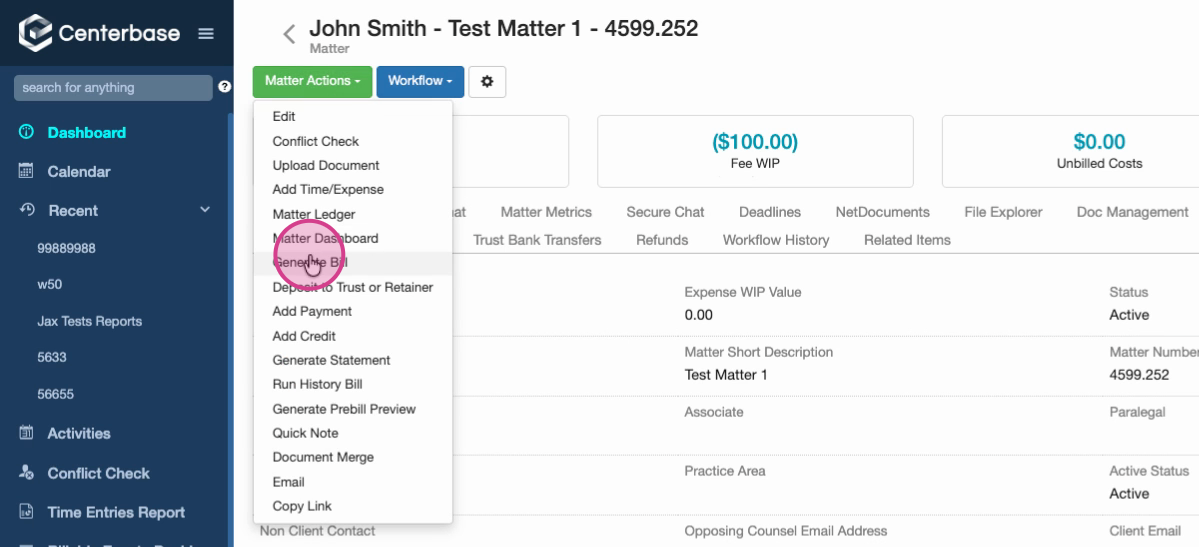
Step 3: Generate a bill for the negative entry by choosing Matter Actions > Generate Bill.
Step 4: When the pre-bill appears, post the bill.
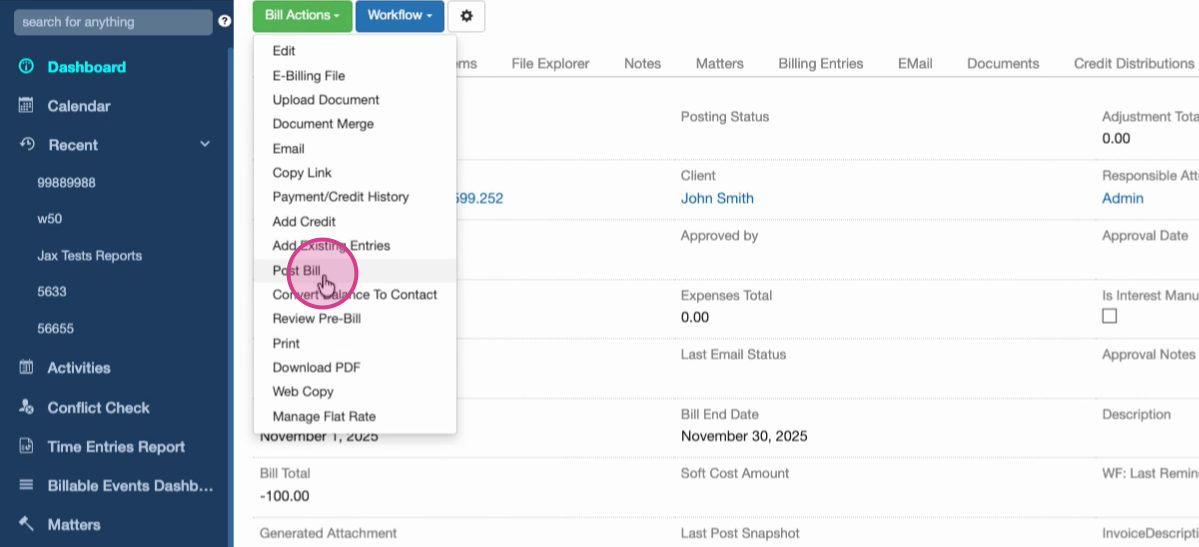
Step 5: On the posted bill, look for the blue Issue a Refund button. Click it to start the refund process.
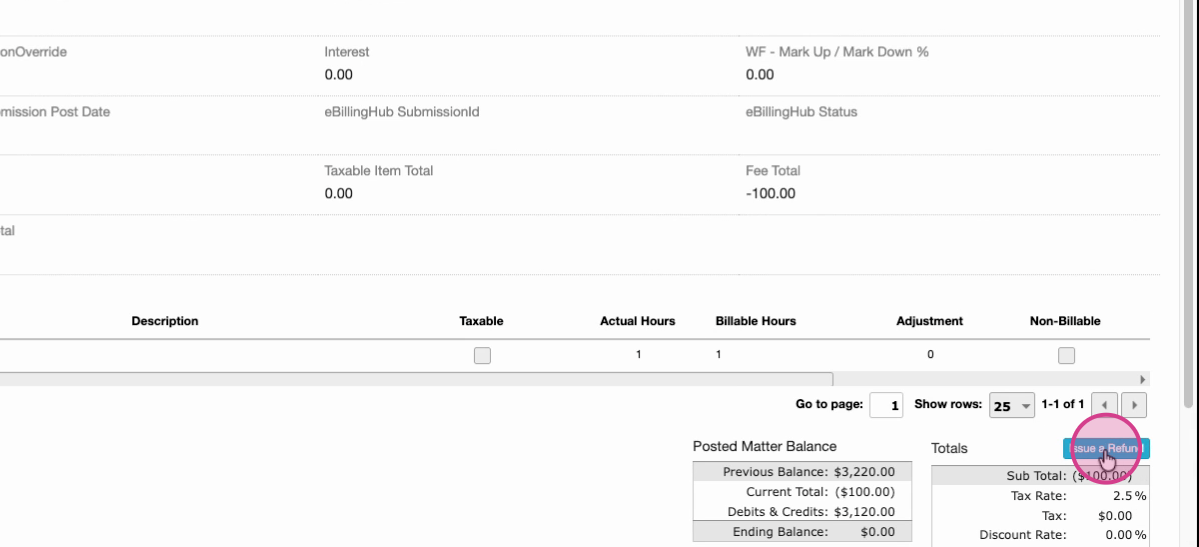
You’ll see a dialog to confirm the refund against the negative bill. Process the refund as needed.
Method 2: Creating a Credit to Generate an Overpayment
This method creates a credit, resulting in an overpayment that you can then refund to your client.
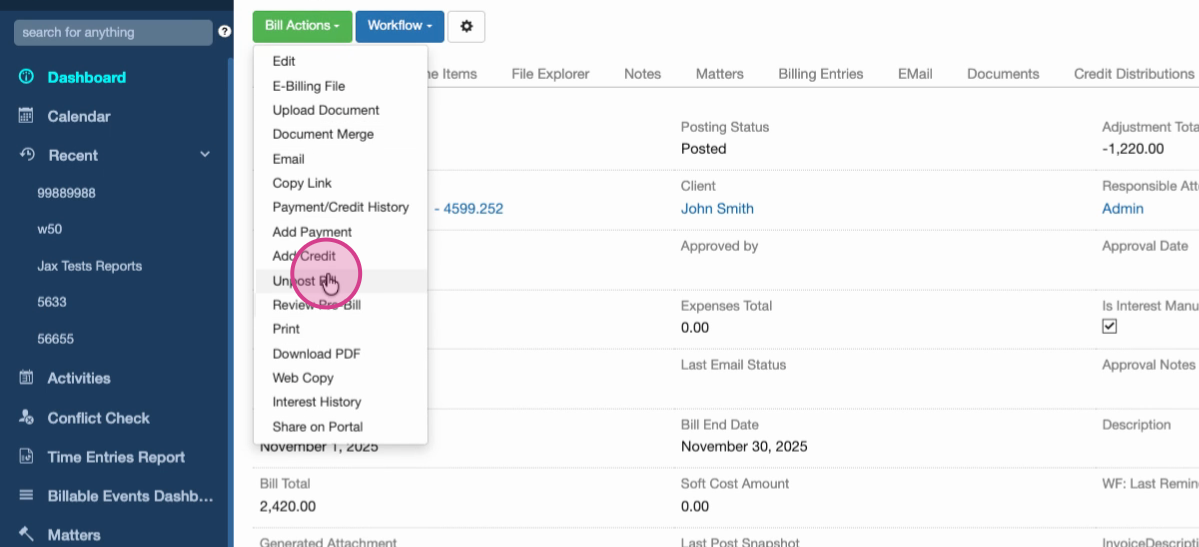
Step 1: Unpost the bill you want to add the credit to. If necessary, unpost previous bills first, since you must post in order of newest to oldest.
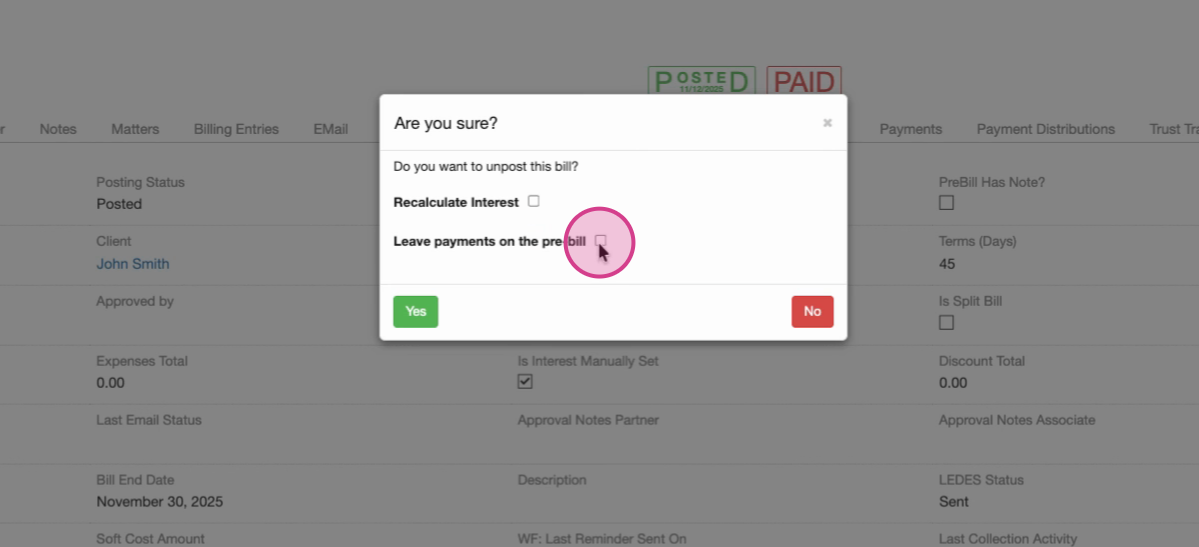
Step 2: When unposting, decide whether to leave payments on the bill. If unposting multiple bills, keep Leave Payments on Bill checked for all but the final target bill, where it should be unchecked.
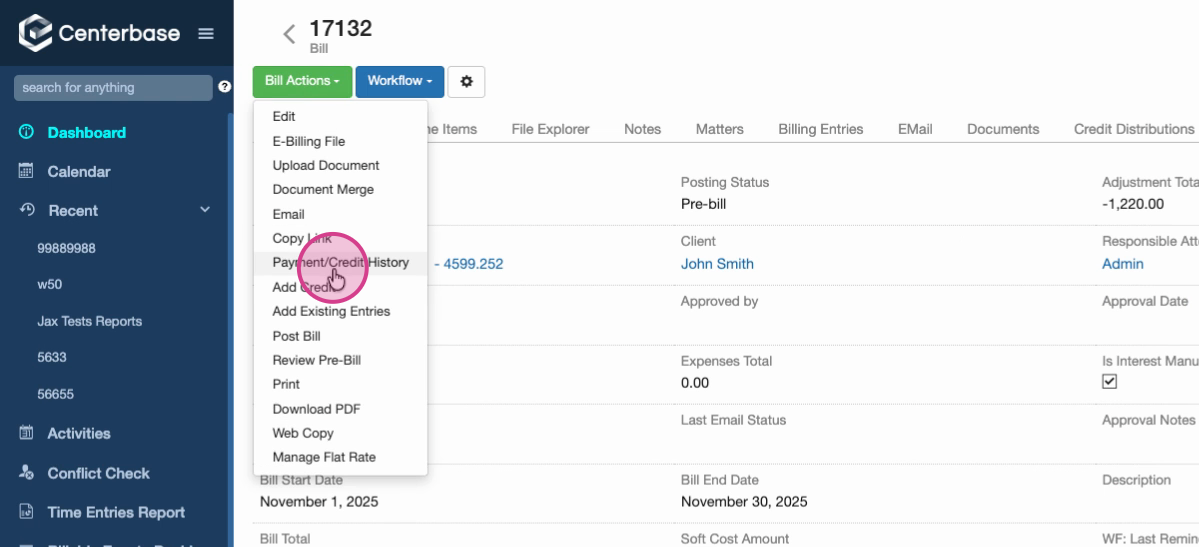
Step 3: After unposting, go to Payment and Credit History and click Add Credit.
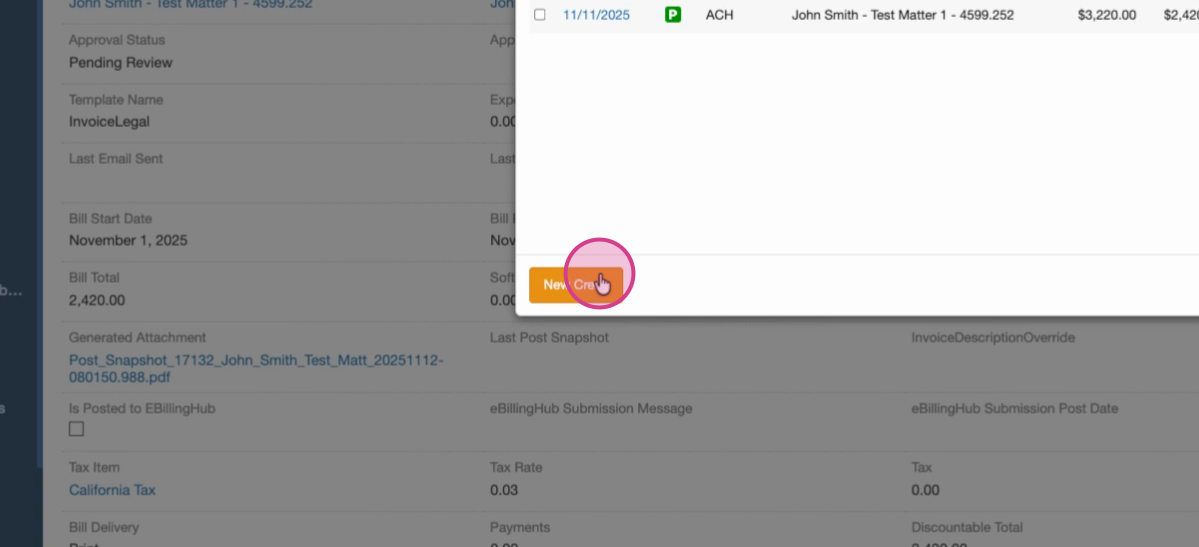
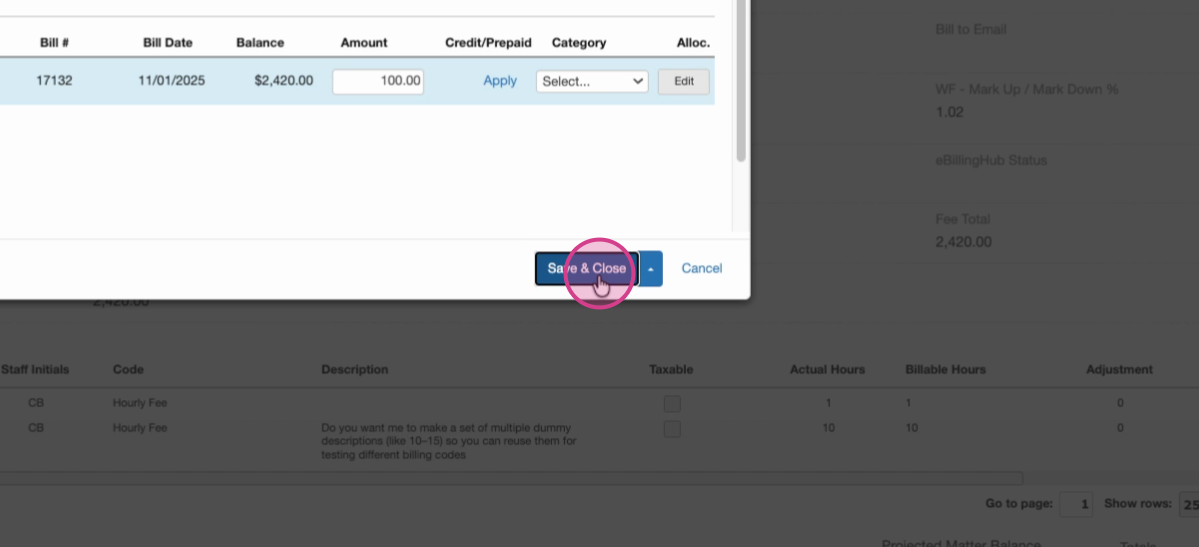
Step 4: Enter the credit amount (e.g., $100), fill in the required fields, and select Save and Close.
Step 5: Apply any needed payment remainder as prompted.
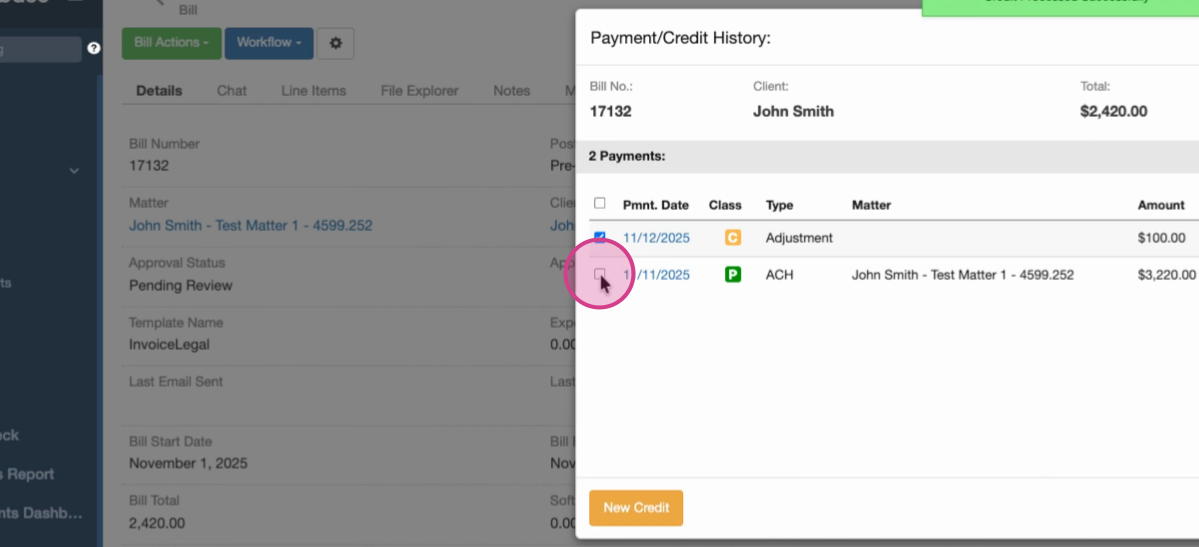
The remaining $100 from the original payment is now considered an overpayment, making it eligible for refund.
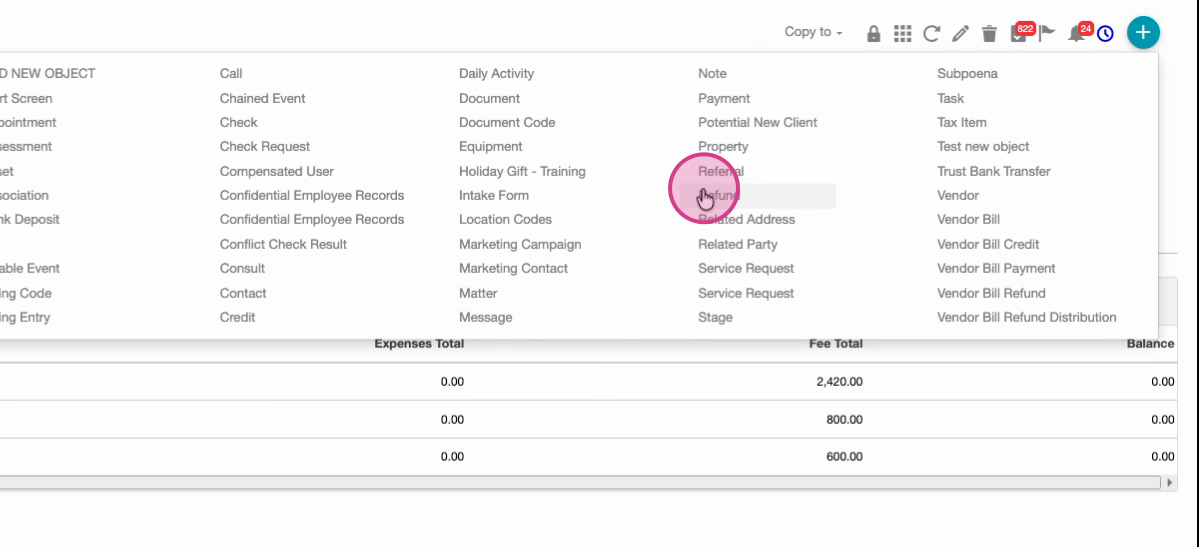
Step 6: Click the blue + Add New button, then click n Refund, select the matter, and process the refund for the overpayment.
Now, the $100 overpayment can be refunded to your client within the system. Please remember to re-post any bills that were once unposted.
Comments
0 comments
Article is closed for comments.